


How to Set a Profile Picture
If you have more than one Microsoft 365 account, your browser may switch between accounts even after a successful sign-in. To easily confirm you're logged into your FireNet account, we suggest updating your FireNet Microsoft 365 profile photo to the FireNet icon. This makes it easy to confirm you’re in the right account at a glance. Here's how...
Set Your FireNet Profile Picture
Step 1
Download the FireNet icon by right-clicking the logo image to the right, selecting 'Save Image As...' from the menu and saving it to a location on your computer

Step 2
Go to https://www.office.com and sign in with your FireNet account
Step 3
In the bottom left corner, click your name or initials → 'My Microsoft 365 Profile'
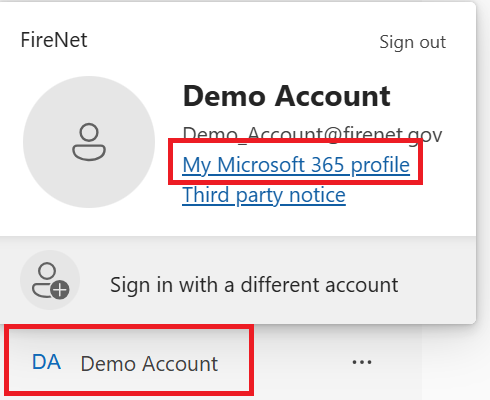
Step 4
On the 'My Account' page that opens, click your initials in the top right corner → 'View Account'
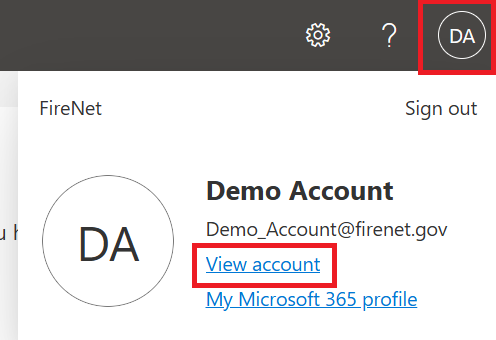
Step 5
Now click the pencil icon next to your current initials profile picture
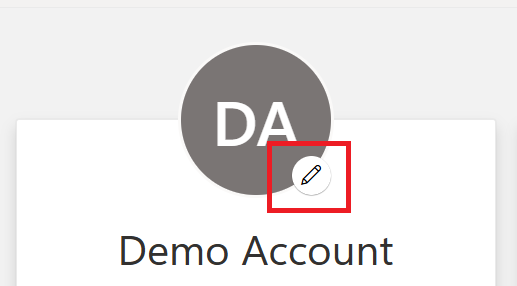
Step 6
Click 'Add a Photo'
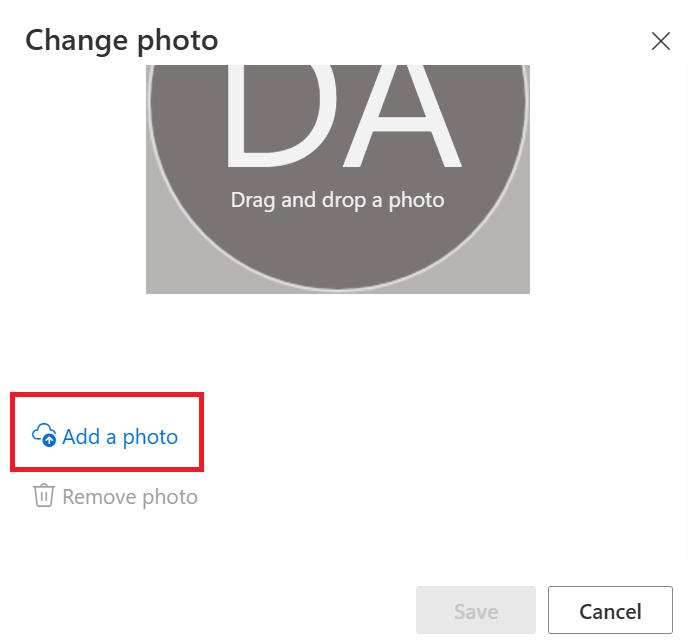
Step 7
Select the FireNet_Icon.png you saved in step 1 → 'Open' → 'Save'
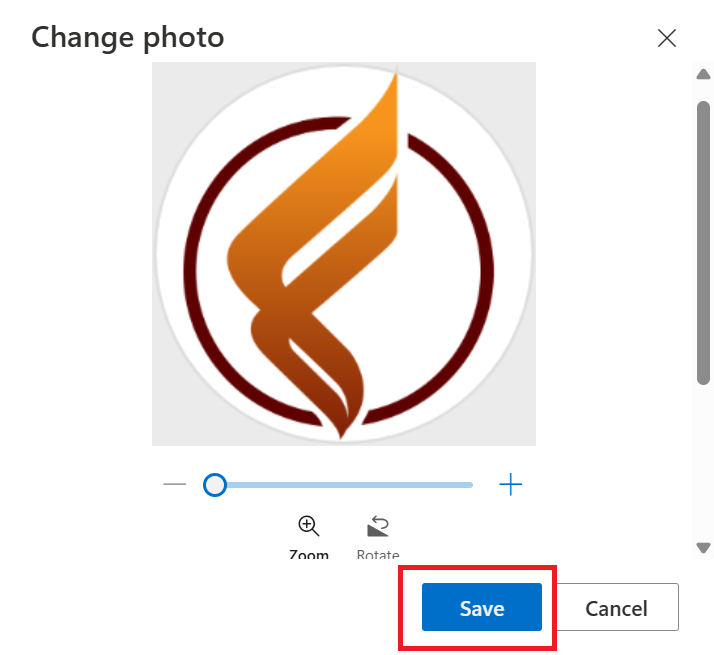
Step 8
Refresh the page and you should now see the FireNet icon where your initials profile picture used to be (in the bottom left corner at office.com). (upper image)
You should also see it in the top right corner of Microsoft apps, such as Teams and Outlook. (lower image)


How to Verify You're in the Right Account
At office.com, look in the bottom left corner:
In Outlook, Teams, or other Office.com apps, check the top right corner:
If You're In the Wrong Account
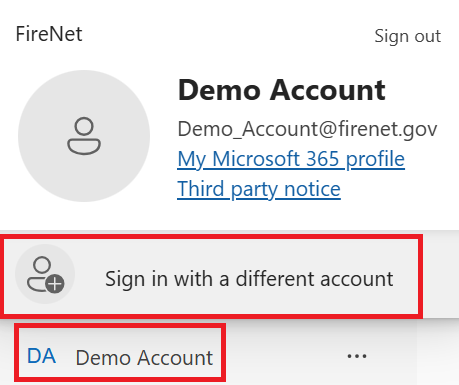
- Click your name or profile picture (icon or initials) and select 'Sign in with a different account'
- On the sign-in screen, either select your FireNet account from the list or choose 'Use another account' if it's not already listed
- Enter your FireNet email and password
- Once signed in, confirm that you now see the FireNet icon (bottom left or top right)
Tips If You Use Multiple Accounts
- Assign different photos for each account.
- In Microsoft apps, click your profile picture → 'Switch account' to move between accounts.
- Open your FireNet account in a private or incognito window or a different browser to avoid mix-ups.
Troubleshooting
- If your new profile picture isn't showing everywhere yet, that’s normal. Profile photos can take a few hours to sync across apps (Office.com, Outlook, Teams, OneDrive).
- If you're still seeing an old photo, sign out, close your browser, then sign back in with your FireNet account.