


How to Sign Out of an Agency Account
Follow these steps if you thought you were logged into your FireNet account, but your agency log-in appears to be "taking over" your browser. Clearing your cache can also be helpful after signing out.
Video Tutorial:

Step-By-Step:
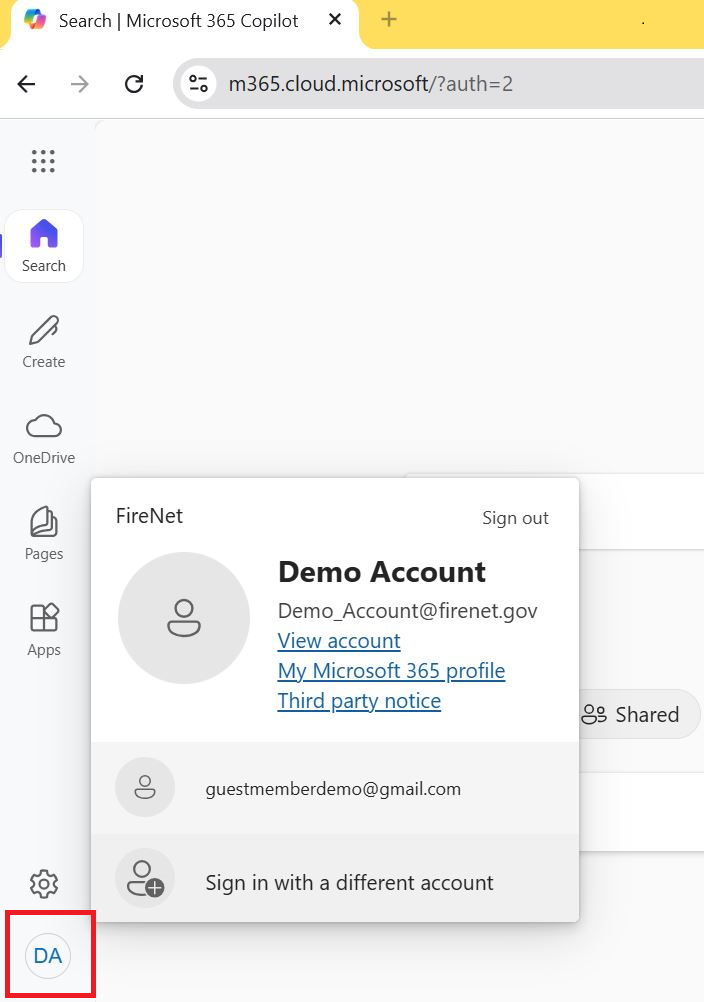
Check Which Account is Logged In
- Go to office.com and click Sign In
- Sign in using your FireNet credentials (firstname_lastname@firenet.gov)
-
After signing in, make sure you're still in your FireNet account in case the browser switched to your agency account.
- You can check this by clicking on your initials on the office.com homepage (lower left of screen), or within a shared inbox, MS Teams or SharePoint (upper right of screen).
- A window will open with account details for the account currently being used.
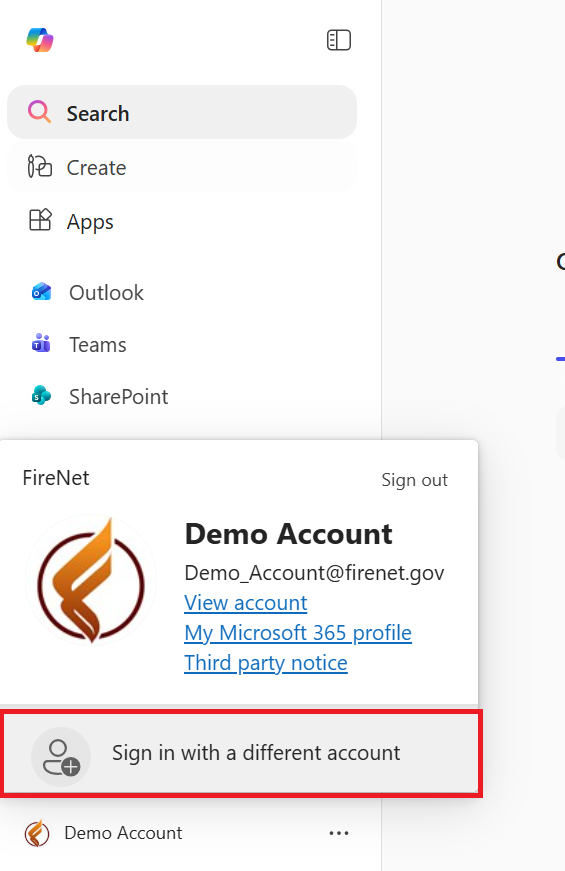
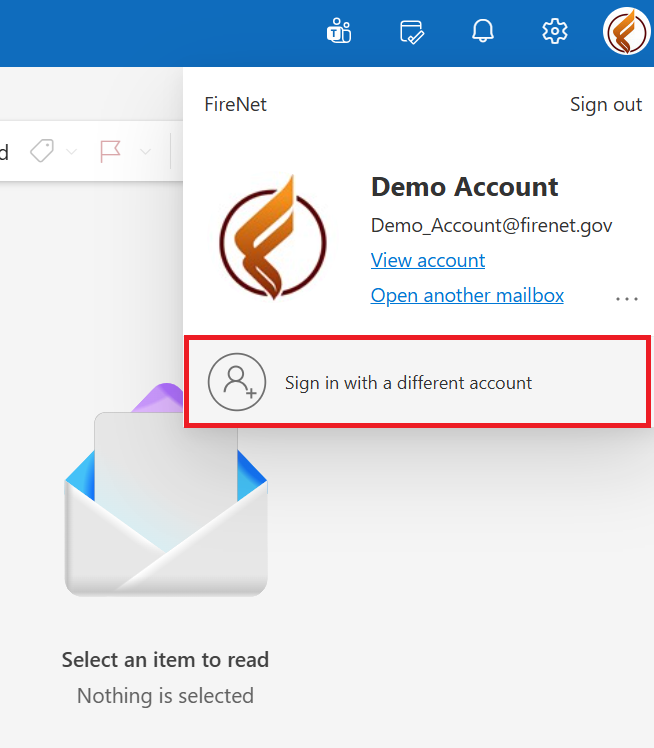
Sign In With a Different Account If Needed
- If the account you're working in is NOT your FireNet account, select Sign in with a different account and log into the FireNet account you're trying to access
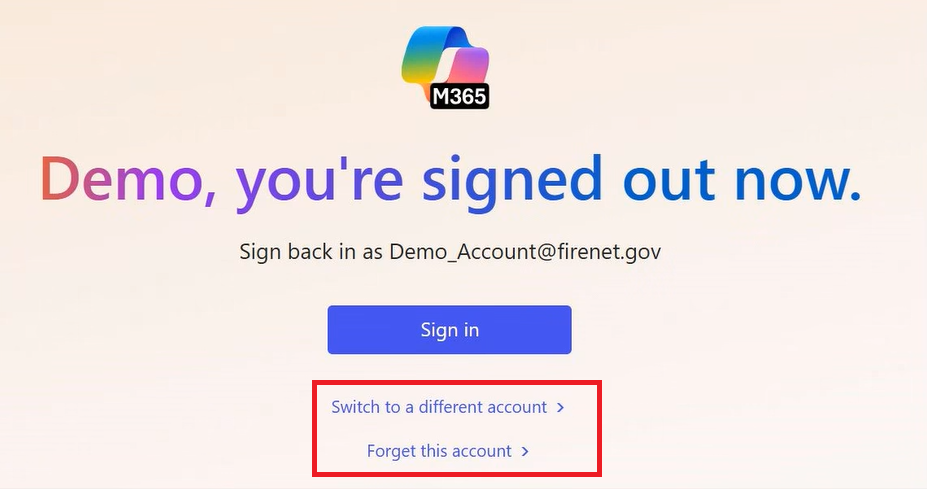
Forget This Account and Switch to FireNet
- If you end up on a screen showing your agency account, try to ‘Forget This Account’ by clicking that option or the (...) next to the account. Click Switch to a different account

Log Back Into Your FireNet Account If Needed
- If signed out, go to office.com again. If there are any options besides your FireNet account, try to click the three dots next to them to remove that profile. Attempt to sign into your FireNet account again at this point.